Hotspot Cards
Hotspot cards test location-based recall by asking you to identify the correct area on an image.
They are ideal when you want active placement or click targeting, not just text recall.
What Hotspot Cards Are
Section titled “What Hotspot Cards Are”Hotspot cards are image-based cards that share the same visual-editor workflow as Image Occlusion, but with interaction-focused review modes.
Use hotspot cards when the learner should identify exact positions, labels, or regions on an image.
Creating A Hotspot Card
Section titled “Creating A Hotspot Card”The usual workflow is:
- Open
Add flashcard. - Choose
Hotspot. - Add or paste an image.
- Define hotspot regions.
- Save the card.
- Sync so LearnKit updates the review database.
Interaction Modes
Section titled “Interaction Modes”Hotspot cards support three study modes:
smart: automatically chooses the interaction style per card (single-target cards use individual click; multi-target cards use all-at-once drag-drop)individual: click one hotspot target at a timeall: drag and drop all labels/targets in one question
You can change the mode in Settings -> Flashcards -> Hotspot.
Demo: Click Mode
Section titled “Demo: Click Mode”.i3-zX6Sx_ZRUMIB.webp)
Question side in click mode.
.Cd8A4eHN_1xnwrD.webp)
Answer side after reveal in click mode.
Demo: Drag-Drop Mode
Section titled “Demo: Drag-Drop Mode”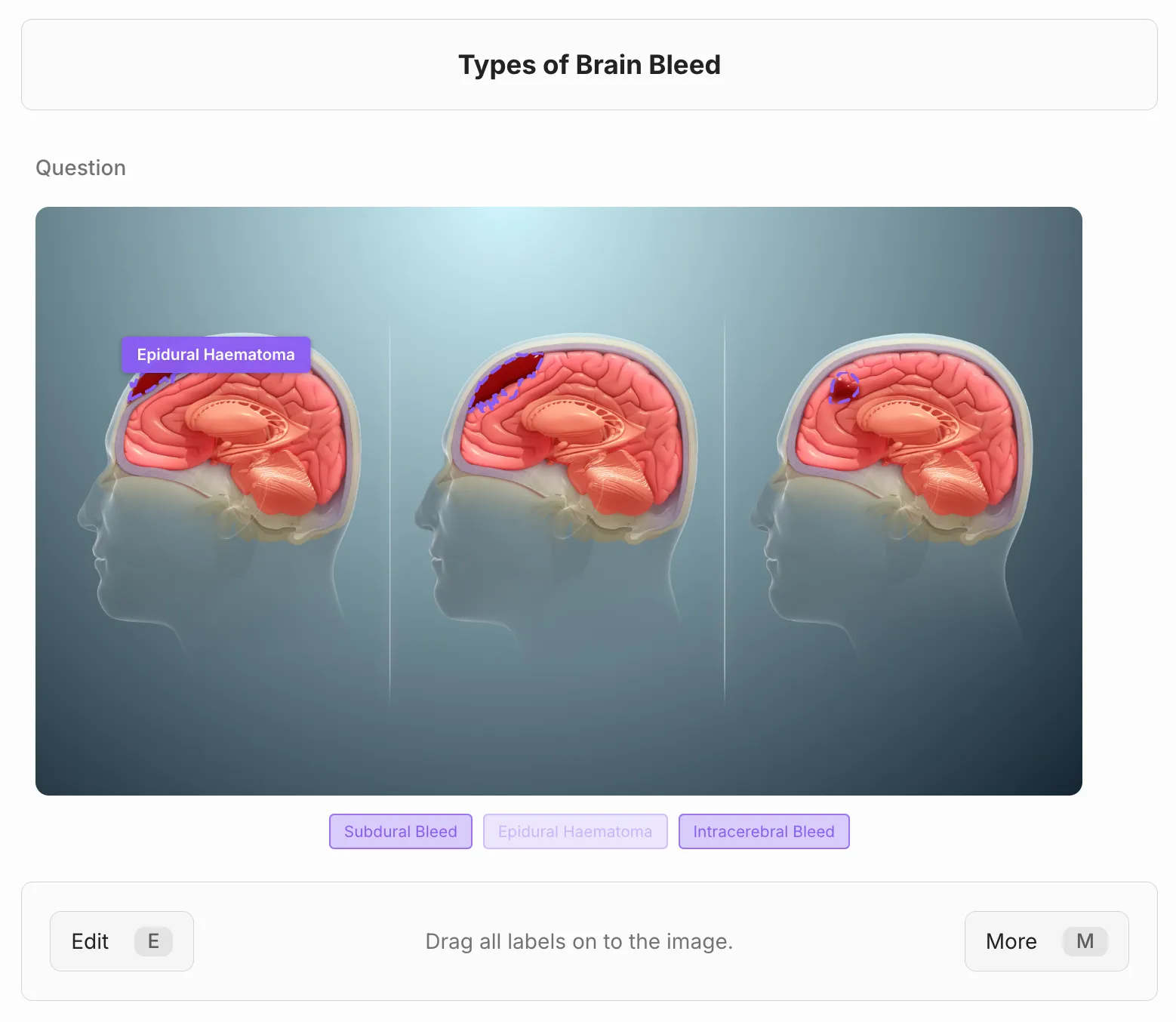
Drag-drop interaction with hotspot targets.
Grouping And Labels
Section titled “Grouping And Labels”Hotspot regions can be grouped and labeled.
Use clear labels to keep prompts specific and reduce ambiguity during review.
For larger diagrams, split regions into meaningful groups so each review target stays focused.
Review Behaviour
Section titled “Review Behaviour”Hotspot cards follow the normal study-session flow, with hotspot-specific correctness checks.
If hotspot auto-grading is enabled in settings:
allmode passes only when all required hotspot groups/targets are correctly placedindividualmode passes when the clicked location matches the requested target- all other outcomes are graded as fail (
again)
If hotspot auto-grading is disabled, you still perform the hotspot interaction first, then grade manually using the standard review buttons.
See Study Sessions and Grading for the shared review and scoring flow.
Storage And Settings
Section titled “Storage And Settings”Hotspot attachments are stored with image attachments.
Relevant settings include:
Settings -> Flashcards -> HotspotSettings -> Data & Maintenance -> Attachment storage
By default, hotspot images use the same storage root as image-occlusion images.
HQ Markdown Fields (Advanced)
Section titled “HQ Markdown Fields (Advanced)”Hotspot cards use the HQ card type in markdown.
Core fields:
HQimage embed (required)Qprompt (optional)Ohotspot regions JSON (optional, typically editor-generated)Minteraction mode:clickordrag-drop(optional)T,I,Gmetadata fields (optional)
Minimal example:
HQ | ![[anatomy-diagram.png]] |Q | Click on the hippocampus. |M | click |I | Focus on medial temporal lobe landmarks. |G | Neuroanatomy |Advanced example with a drag-drop mode flag:
HQ | ![[pathway-diagram.png]] |Q | Place each label on the correct region. |M | drag-drop |For most users, creating hotspot cards through the modal/editor is safer than hand-authoring O region JSON.
Related
Section titled “Related”Last modified: 28/04/2026